You've copied a polished Excel range into Word, only to find that the columns no longer fit, a chart has moved to the next page, and a later edit has changed the table's appearance. The transfer looked simple because both applications belong to Microsoft Office. The document behaves badly because Excel and Word treat tables, formatting, pagination, and linked content differently.
A dependable Excel to Word workflow starts by identifying the result you need. Do you need to keep editing the spreadsheet, create a fixed client-facing report, or refresh the same document whenever the workbook changes? Those are different jobs, and they call for different transfer methods. The practical choice is usually between a Word-native table, an embedded Excel object, a linked object, a picture, or a PDF round-trip.
The underlying format history helps explain why these workflows became practical. Excel's older BIFF8 .xls format was introduced in 1997 and remained the default through Excel 2003. Excel moved to XML-based .xlsx with Office 2007, while Word adopted .docx during the same Office Open XML transition. The Library of Congress format description explains the difference between the older proprietary binary formats and the newer XML-based files.
Table of Contents
- Three Jobs People Actually Need to Solve
- Choose the Right Transfer Method
- Paste a Clean Excel Table into Word
- Embed Charts and Complex Layouts
- Link Data for Reports That Refresh
- Normalize Spreadsheets Before Transfer
- Final Checklist and Print-Ready Path
Three Jobs People Actually Need to Solve
Many users seeking an Excel to Word solution aim to solve one of three core problems. The first is preserving editing power. They want the spreadsheet to remain available inside the Word document so they can adjust values, formulas, formatting, or column widths without rebuilding the table.
The second is producing a print-ready document. In that case, Excel supplies the data, but Word must control the typography, page breaks, headers, footers, captions, and surrounding narrative. A table that looks correct in Excel may still be too wide for Word's margins or split badly across pages.
The third is keeping recurring reports current. A monthly management report, board pack, or operational summary may use the same Excel source repeatedly. Rebuilding the document manually creates opportunities for stale values, inconsistent formatting, and missed updates.
Match the job before choosing the command
For an editable spreadsheet surface, Paste Special as a Microsoft Excel Worksheet Object is usually the right starting point. Word stores the Excel content as an embedded object, so a reader can double-click it and edit the worksheet using Excel's interface.
For a document where Word must own the layout, a Word-native table or static picture is often more predictable. A Word table is easier to style alongside prose, while a picture avoids accidental changes but sacrifices editing.
For recurring data, Paste Link or Word Mail Merge may be appropriate. A link can refresh from the source workbook, but it introduces a dependency on the workbook's location and accessibility. Mail Merge separates the data list from the document template, which can be cleaner for repeated letters, labels, or individualized reports.
Practical rule: Decide whether the document's priority is editability, visual stability, or refreshability. You rarely get all three from one paste method.
The format transition to XML also matters operationally. Research comparing older OLE-based Office files with XML-based files found different raw and compressed file sizes for Excel and Word documents, as documented in this Office file-format comparison. The important practical point isn't the size alone. Structured modern formats made cross-application handling and automation more workable, but they didn't make Excel and Word share the same layout engine.
Choose the Right Transfer Method
Word gives you several ways to bring Excel content into a document, but they don't produce the same kind of object. Plain paste creates Word-owned content. Embedding preserves an Excel object inside the Word file. Linking preserves a relationship with an external workbook. Pasting as a picture flattens the range into an image, while a PDF round-trip prioritizes page fidelity over editability.
| Method | Editable After Paste | Updates With Source | Layout Fidelity | Best For |
|---|---|---|---|---|
| Plain paste | Yes, as a Word table | No | Moderate | Small tables that Word will style |
| Embedded Excel object | Yes, through Excel | No, unless edited inside the document | High | Editable ranges, charts, and complex layouts |
| Linked Excel object | Yes, through the linked source | Yes, when the link works | High | Recurring reports with stable file paths |
| Paste as Picture | No | No | High for a fixed snapshot | Locked visuals and exact static presentation |
| PDF round-trip | No, in the normal Word editing sense | No | Very high for pagination | Print-ready output where layout matters most |
The structural reason is simple. Embedded and linked objects retain an OLE relationship to Excel, which allows Word to open the content through Excel again. Plain paste converts the selection into Word-native content at the time of transfer. A picture and a PDF are even more fixed. They may preserve appearance better, but they won't give you the original spreadsheet behavior.
Plain paste versus Paste Special
Plain Ctrl+V is fast, but it lets Word decide how to interpret the copied range. That decision may inherit Word styles, change font sizing, or alter alignment. Microsoft community guidance recommends using Paste Special, with an Excel worksheet object or a link when structure matters, and also points to changing Word's default behavior to Keep Source Formatting where appropriate. See the Microsoft guidance on preserving table formatting.
Choose an embedded object when the recipient may need to inspect or edit the Excel content. Choose a picture when the range is a finished visual and accidental changes would be worse than lost editability. Choose PDF when the document is a page-layout deliverable and the Excel print layout is already correct.
A PDF round-trip can be the contrarian choice. Export the worksheet from Excel as PDF, then insert the PDF into Word or assemble it with Word content. You'll give up normal table editing, but you can avoid the repeated cycle of correcting column widths, page breaks, and chart positions.
Paste a Clean Excel Table into Word
The safest transfer starts in Excel, not Word. Select only the required range, remove unnecessary formatting, and inspect the sheet in print preview before copying. Word can inherit the source's general width intent, but it won't reproduce Excel's pixel-level geometry reliably inside a different page grid.
Prepare the source range
Check these items before you copy:
- Limit the selection: Don't copy entire worksheets when the report needs a summary block.
- Review print layout: Confirm that the table's columns fit the intended page orientation and margins.
- Remove merged cells: Merges are a common cause of empty cells and distorted headers after conversion.
- Expose required rows and columns: Hidden content can create an incomplete or misleading transfer.
- Simplify conditional formatting: If the visual rules aren't essential, reduce them before moving the range.
In Word, place the cursor at the target location and choose Home, Paste, Paste Special instead of relying on plain Ctrl+V. Select Microsoft Excel Worksheet Object when the recipient needs an editable Excel surface. Select Unformatted Text when you want to create a genuine Word table, then use Word's table conversion tools to define the columns.
Control Word's default behavior
Word's paste defaults can reshape later transfers. Open File, Options, Advanced, then find the Cut, copy, and paste settings. Depending on the report's needs, use Keep Text Only, Use Destination Styles, or Keep Source Formatting deliberately rather than leaving the decision to Word.
For a Word-native table, use Table Properties after insertion. Set the table to fit the available window, review column widths manually, and check whether rows are allowed to break across pages. Add a caption through References, Insert Caption, rather than typing a caption as ordinary text. That keeps numbering and cross-references manageable when the report grows.
A clean table is easier to preserve than a complicated one. Normalize the Excel range before copying, then make Word responsible for only the styling it actually needs to control.
If the result looks right on screen but breaks in print preview, don't keep changing random font sizes. Check the page orientation, margins, table width, row splitting, and paragraph spacing in that order. Those settings usually explain the visible failure more directly than the paste command itself.
Embed Charts and Complex Layouts
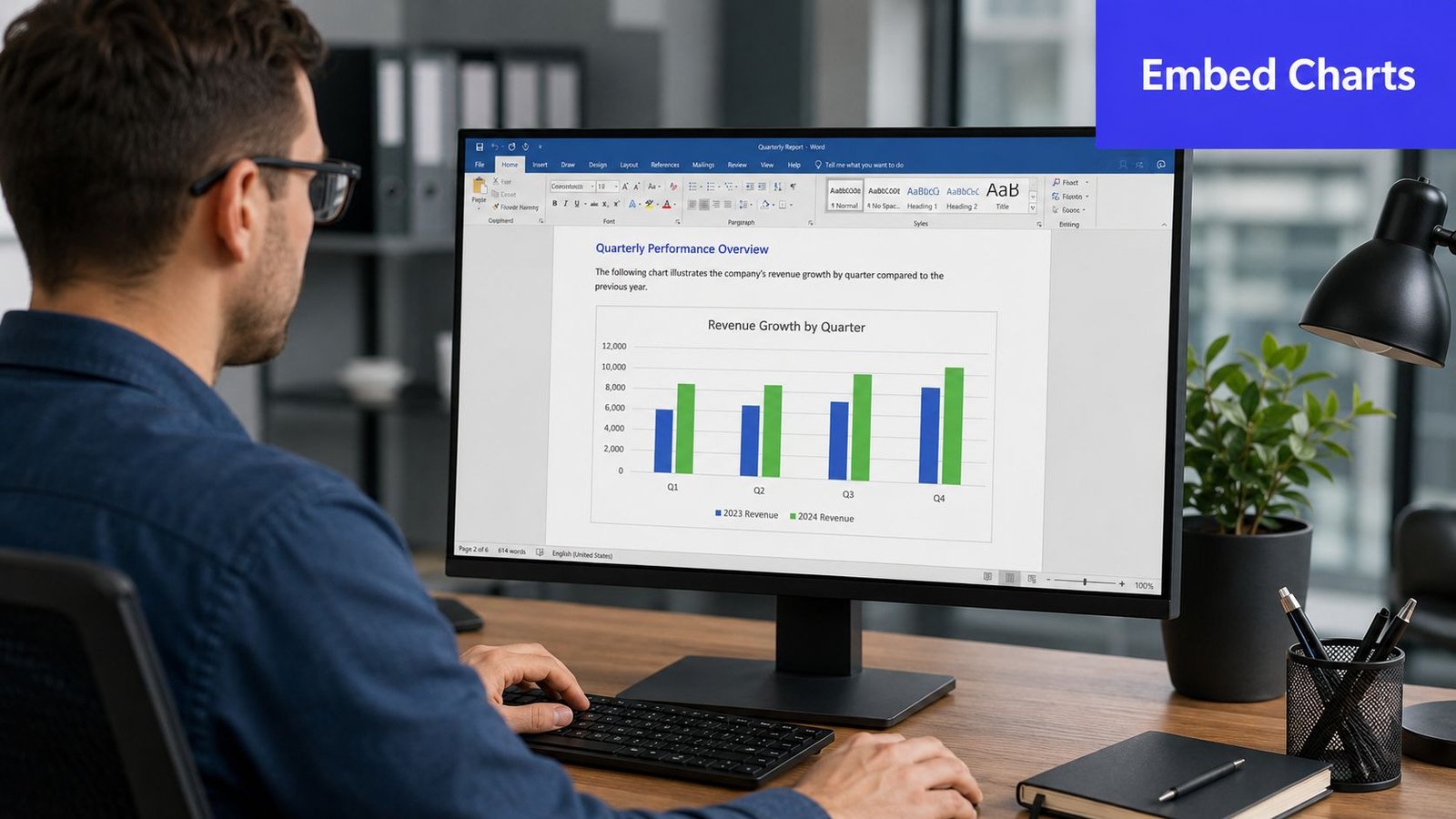
A chart, dashboard fragment, or carefully arranged Excel block often needs more than a Word table can provide. When the visual must remain editable but shouldn't be rebuilt from individual Word elements, embedding the Excel object is usually the most controlled option.
Select the chart or named range in Excel, copy it, then use Paste Special, Microsoft Excel Worksheet Object in Word. You can also choose Insert, Object, Create from File when you want to bring in a workbook or file-based object directly. Word stores the Excel content inside the document, rather than turning every component into an unrelated Word shape.
Edit the object without rebuilding it
Double-click the embedded object in Word to open its Excel editing surface. Adjust the data, chart, or formatting, then close the embedded editing view to return to the refreshed rendering in Word. This is useful when the report needs a small correction but the source workbook shouldn't be distributed as a separate attachment.
Set the object's size deliberately. Lock the aspect ratio before resizing so the chart doesn't become visibly stretched. Use Format Object, Size to enter exact dimensions that fit the page grid, and check the result in print preview rather than relying only on the normal editing view.
Keep the caption separate from the object. Add a new Word paragraph below the chart and apply the Caption style through References, Insert Caption. A separate caption behaves better with numbering, cross-references, and accessibility than text placed inside a graphic.
Build complex compositions before embedding
If several charts belong together, arrange them in Excel first and embed the composition as one block. Stacking multiple embedded objects in Word can make anchoring and repagination harder to control. A single object gives Word fewer independent items to move when text above it changes.
Embedding isn't a universal fix. It increases the document's dependence on Excel behavior and can make later styling less convenient. Use it when the Excel surface itself matters. If the object is only a finished visual, a picture may be safer. If the entire page must preserve Excel's pagination, PDF may be the stronger choice.
Link Data for Reports That Refresh
A recurring report needs a different operating model from a one-off document. Consider a finance analyst preparing a monthly board pack. The summary range lives in an Excel workbook, while Word contains the commentary, cover page, section headings, and approval text. Recopying the range every month is simple at first, but it leaves the analyst responsible for remembering every update.
With the summary range selected in Excel, copy it into Word through Paste Special, Paste Link, Microsoft Excel Worksheet Object. Word then stores a reference to the source workbook instead of only storing a copied snapshot. Depending on the document state and Word settings, you can right-click the linked object and choose Update Link, or select the field and press F9.

The trade-off is operational, not cosmetic. The report now depends on the workbook remaining available and recognizable to Word. If someone moves the workbook, renames a sheet, changes the folder structure, or restricts access, the link may stop updating or require repair. The Microsoft Q&A discussion about Excel to Word conversion reflects the kind of formatting and linked-content problems users encounter in real workflows.
A live link is a dependency, not a backup. Keep the source workbook in a controlled location, define who can edit it, and verify the refresh before distributing the report.
Use Mail Merge for individualized documents
For letters, notices, labels, and other repeated documents, Word Mail Merge can be cleaner than embedding a separate linked object in every document. Keep the Excel recipient list structured, use clear header names that match the merge fields, and build a plain Word template before adding visual complexity.
CSV files need careful encoding when they contain accented characters or non-English names. Exporting with UTF-8 encoding helps prevent character loss during import. Test the merge with representative rows, including long names, blank values, dates, and addresses that wrap to additional lines.
Place the video after the implementation details, because it's most useful as a visual reference once the dependency trade-off is clear.
Linked content works well when the source path, permissions, naming, and refresh procedure are controlled. It works poorly when users email files between locations or expect a recipient to open the Word document without access to the original workbook. For external delivery, a refreshed static copy or PDF often provides a safer final artifact.
Normalize Spreadsheets Before Transfer
Many Excel to Word failures begin in the source worksheet. Word can't reliably infer the intended structure when the range contains merged headers, inconsistent columns, embedded line breaks, nested tables, hidden characters, or formatting that serves a visual purpose in Excel but has no equivalent in Word.
Remove structural ambiguity
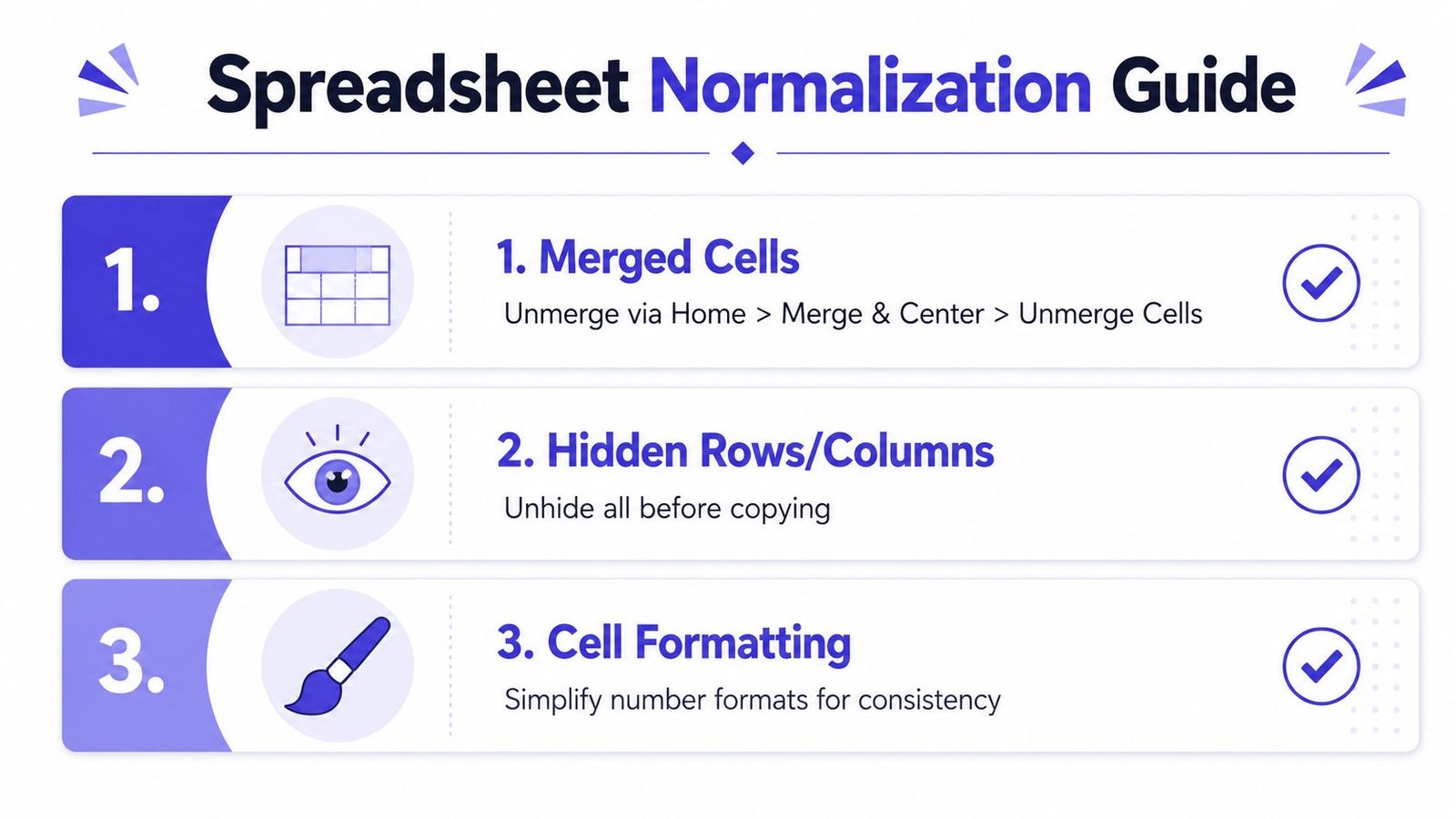
Merged cells are especially risky. In Excel, a merged header can communicate hierarchy visually. In a Word table or downstream parser, the same structure may become an empty adjacent cell or an uneven row. Use Home, Merge & Center, Unmerge Cells, then repeat the parent value where the receiving document needs an explicit value.
Line breaks inside cells can also cause trouble. Text entered with Alt+Enter may become a paragraph break or an unintended new row during conversion. Replace it with a space, a comma, or a deliberate placeholder that your Word template can handle.
Nested tables and grouped outlines need simplification before transfer. Copy the visible, required range rather than the entire worksheet, and avoid carrying hidden formatting characters into the destination. The technical guidance on table conversion and data corruption identifies merged cells, inconsistent column counts, nested tables, and line breaks as common sources of shifted rows and columns.
Make displayed values intentional
Dates, currencies, and percentages can redraw differently when Excel and Word apply different locale or style rules. If the report needs a fixed display string, use a deliberate Excel presentation value, such as a TEXT() formula, before transfer. This separates the value shown to the reader from the underlying calculation used in the workbook.
Run this pre-flight list before every important transfer:
- Unmerge cells: Replace visual merges with explicit row and column values.
- Unhide content: Confirm that the copied range contains everything the recipient should see.
- Remove manual breaks: Replace embedded line breaks with predictable text.
- Flatten nested structures: Transfer a clean rectangular range.
- Review formats: Decide whether Word should receive values, source formatting, or an Excel object.
- Check print preview: Confirm the source range is already sensible on the intended page.
Normalization takes a little time before the paste, but it prevents much harder repairs after Word has already converted the structure.
Final Checklist and Print-Ready Path
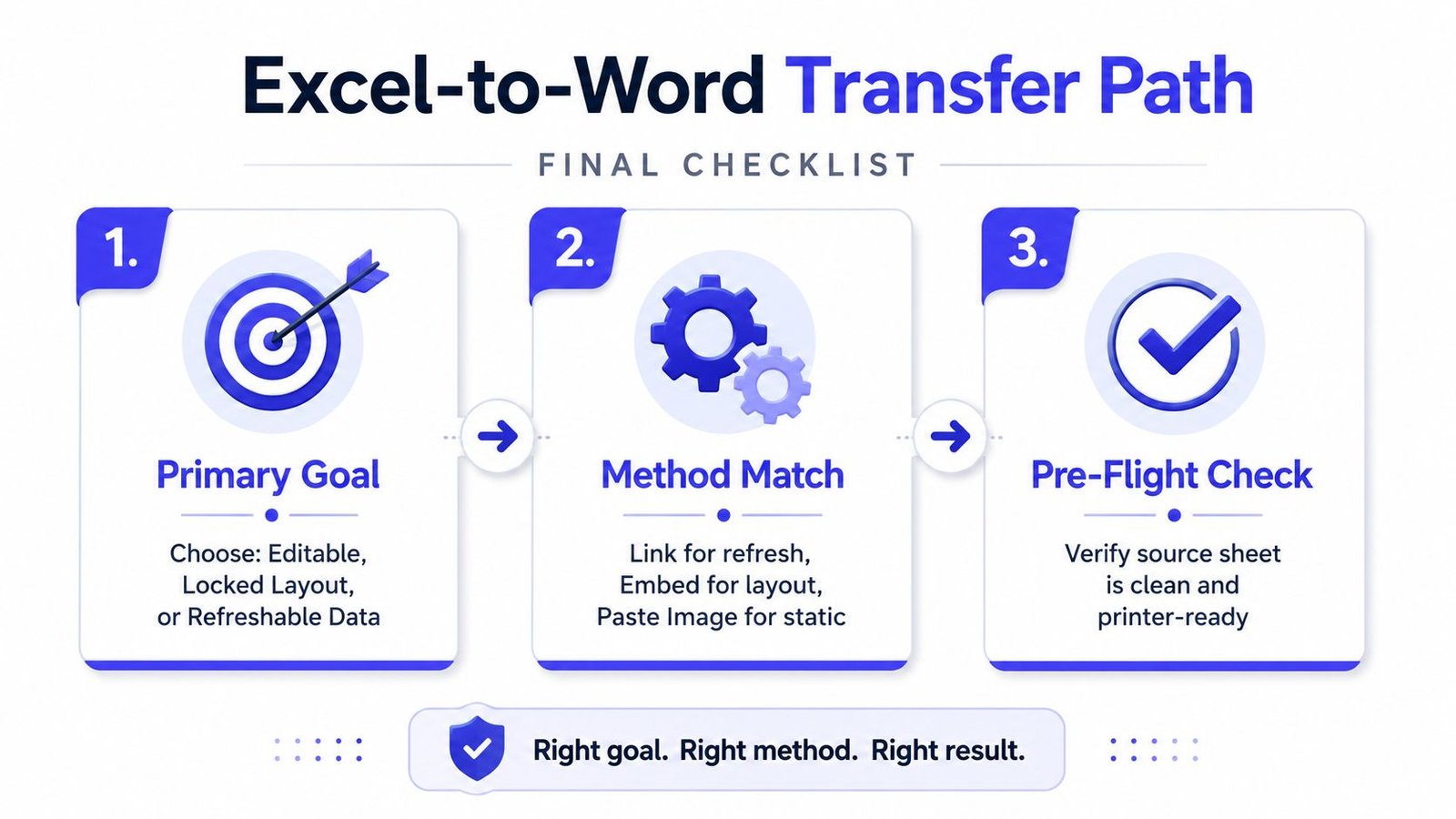
Before you send an Excel-fed Word document, make five decisions:
- Choose the primary goal: Keep the content editable, lock the layout, or refresh it from a source.
- Match the method: Use a Word table for Word-owned editing, embed for an editable Excel surface, link for controlled refreshes, picture for a fixed visual, or PDF when pagination matters most.
- Normalize the workbook: Unmerge cells, remove line breaks, expose required rows, simplify formatting, and verify the range.
- Confirm Paste Special settings: Don't let Word choose between source formatting, destination styles, and plain text.
- Inspect the final pages: Check table breaks, chart size, captions, margins, and orientation.
When print fidelity outweighs editability, export the Excel sheet to PDF first, then bring that fixed output into the document workflow. A conversion-first route can preserve page breaks and formatting more reliably than direct pasting, especially for complex worksheets. DocuCraft also offers a workflow that takes an Excel file and produces a print-ready Word report in one pass, avoiding the fragile embed-and-tidy cycle.
Use Ctrl+P before delivery. Page breaks, column widths, and chart scaling are the three areas most likely to shift after an Excel to Word transfer.
If you need a repeatable way to convert Excel content into polished Word reports, DocuCraft can handle the conversion path while keeping document processing organized and traceable. Visit DocuCraft to turn spreadsheet-based files into a more reliable reporting workflow instead of repairing each pasted document by hand.